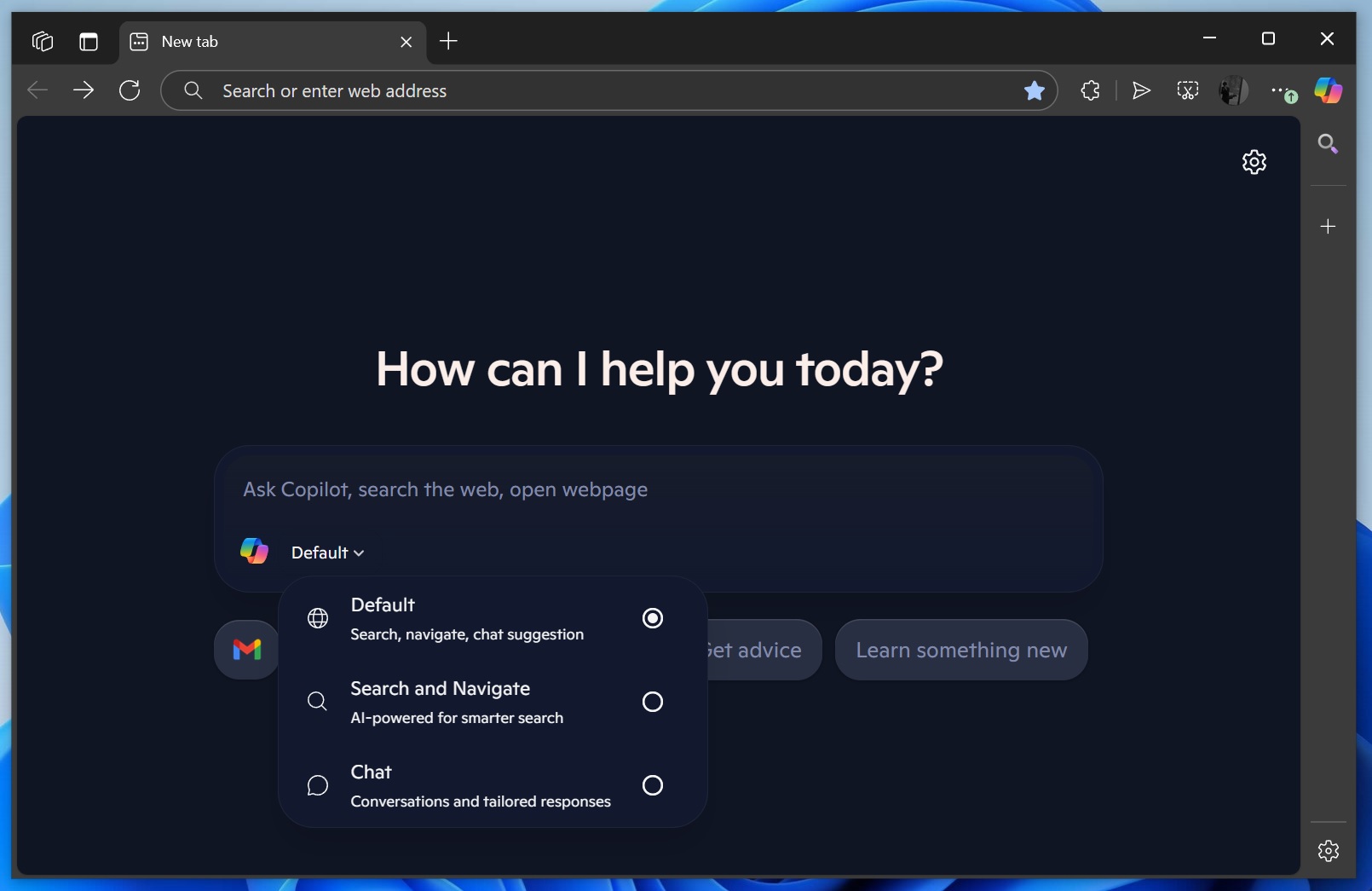
1. What is Copilot Mode?
Definition & purpose
Copilot Mode is an optional mode in Edge that transforms the browser from being a passive tool (you search, you click) into a more active assistant: a hybrid of browser + conversational AI + task-automation. (Microsoft)
In Microsoft’s own words:
“When enabled, Copilot becomes a productivity partner — you’re no longer just browsing; you’re being helped.” (Microsoft)
Key aspects:
- A new tab page turns into a chat/search/navigation interface. (Tom’s Guide)
- It can use context (open tabs, optionally history/credentials) to better respond. (TechCrunch)
- It brings in “agentic” features: real-world tasks like booking, unsubscribing, etc. (Business Standard)
So in short: Edge + AI deep integration.

2. What’s new (in this release)
Breaking it into distinct features:
(a) Unified New Tab / Input Interface
- When Copilot Mode is enabled, the new tab page in Edge shows a single input box (chat/search/navigation). (Tom’s Guide)
- It’s designed to reduce friction: no switching between search bar, address bar, chat box.
- Voice input supported: talk to the browser instead of typing. (MacRumors)
(b) Multi-Tab Context / Cross-Tab Reasoning
- With your permission, Copilot can access all open tabs (not just the active one) to summarise, compare, assist you. (MacRumors)
Example: You’ve opened multiple hotel or product pages – ask Copilot: “Which is the cheapest/faster/closest?” - This reduces “tab-toggling” and helps in research/work scenarios. (Tom’s Guide)
(c) Agentic Actions (“Copilot Actions”)
- Copilot doesn’t only answer; it can act: e.g., “Unsubscribe me from all shopping newsletters”, “Reserve dinner at 7pm Friday”. (Business Standard)
- Available in limited preview (currently US only) for now. (Microsoft)
(d) Journeys & Memory / Project Resumption
- Feature called “Journeys” groups your past browsing sessions into topics so you can pick up where you left off. (Windows Blog)
- With consent, it may use your browsing history to provide richer, personalised responses. (Windows Blog)
(e) Privacy & Control Mechanisms
- Important: these enhanced features require explicit opt-in. You choose whether Copilot can view tabs, history, credentials. (Microsoft)
- Visual cues indicate when Copilot is active/listening/acting. (Tom’s Guide)
- Data handling follows Microsoft’s privacy standards; user data is yours. (Business Standard)
(f) Security & Additional Features
- Built-in “scareware blocker”: local AI detects full-screen scam takeovers. (Business Standard)
- Improved password management, monitoring for breaches. (C# Corner)
3. How does it work (under the hood / conceptually)
From a system perspective (especially relevant given your interest in technology and research) the mode can be decomposed as:
- Input interface: chat/search/navigation box + voice input → translates user intent into commands.
- Context gathering: reading metadata of open tabs (URLs, page content), optional history/credentials.
- AI reasoning: using underlying language models + heuristics to summarise, compare, execute tasks.
- Action execution: navigation, automation (unsubscribe, reservation) etc.
- Privacy & permission layer: gating of which data is accessed; visual feedback.
- User control layer: toggle on/off, revert to classic mode, settings for permissions.
From a research-style view: This is a shift from “browser = window to web” → “browser = intelligent assistant in the web”. The key variable changes from which page do I click to what do I want to do, and the browser helps you execute.
4. Strengths & Potential Advantages
Given your background (content research, technology interest), here are notable advantages:
- Productivity enhancements: For example, if you’re researching a topic (say, applied mathematics algorithms) and you have many tabs open, Copilot can summarise across tabs, highlight the best references, reduce cognitive load.
- Reduced friction: Less need to manually switch tabs or drag in information; you can ask naturally.
- Voice/Hands-free interaction: Helpful if you prefer speaking to typing (or have accessibility needs).
- Better continuity: Journeys feature supports project-based workflows (e.g., “I was studying X; let’s pick back up”).
- Task automation: If mature, this could reduce mundane tasks (unsubscribe, reservation) — freeing mental bandwidth for more complex work.
- Privacy-centred design (potentially): If used properly, the opt-in model gives users more control over data versus hidden background access.
5. Weaknesses, Limitations & Risks
No system is perfect; here are the caveats and things to watch:
- Maturity & reliability: Agentic features are still in preview; for example, unsubscribing or booking may not always work smoothly. (The Verge)
- Privacy concerns: Although opt-in, the idea of the browser reading across tabs, history, credentials may raise discomfort. Users must be vigilant about permissions.
- Cost questions: Although free now, Microsoft notes it’s “free for a limited time”. (Tom’s Hardware) Future costs or usage limits may apply.
- Potential distraction / over-automation: Relying too much on AI could reduce learning or active engagement; for someone like you who values foundational understanding, this automation must be used wisely.
- Data dependency: If you haven’t given Copilot enough context (permissions, relevant tabs), its answers may be less accurate or misleading.
For example, some Reddit users report glitches:
“once i asked it to read the content of the page. it kept reading the title … and then back from the beginning.” (Reddit) - Browser bloat / performance: Additional AI logic might impact speed, resource usage.
- Region & platform limitations: Some features (Copilot Actions, Journeys) are currently only in U.S. preview. (Business Standard)
6. Practical Implications for You
Given your profile — you’re a research-minded user, working with web content, writing, editing, exploring tech — here’s how you might leverage Copilot Mode:
- Research workflows: When you have many tabs open around a topic (e.g., pure mathematics, astrophysics, tech gadgets for your website), you can ask Copilot: “Summarise the main points across all tabs” or “Compare the algorithmic complexity from tab A and tab B”.
- Content creation assistance: Use voice or chat to switch quickly between research, writing, referencing; Copilot can help fetch definitions, suggest explanations, or compare sources.
- Website/product work (for your webstore site): You could ask: “Compare these five gadgets I have open; which has the best spec-to-price ratio for a tech-savvy audience?” Copilot may help.
- Automation of repetitive tasks: For instance, you could ask Copilot to clean up your browser tabs, summarise reading lists, help draft email content or unsubscribe from unwanted newsletters.
- Maintaining control: Since you value deep understanding, use this feature as assistant, not as a crutch. Always validate the AI’s output. Ensure you handle permissions consciously.
- Exploration of limits: You could experiment with the feature for a short period (while it’s free) and observe performance, then decide how much to integrate it into your workflow.
7. How to Get Started
Here are step-by-step instructions:
- Make sure you have the latest version of Edge on your Windows or Mac.
- Visit the activation page: aka.ms/copilot-mode (per Microsoft) (Windows Blog)
- Toggle Copilot Mode on.
- In Edge settings, adjust permissions:
- Whether to allow Copilot to access open tabs.
- Whether to allow browsing history / credentials.
- Flip back to classic mode at any time if you wish. (Microsoft)
- Try out features:
- Open several tabs around a research topic; ask Copilot: “Summarise these tabs”.
- Use voice input: “Hey Copilot, find me the cheapest smartphone I have open in these tabs.”
- Explore Journeys: see how past sessions are grouped into topics.
- Be mindful of data and permissions: When you grant “open tabs” or “history” access, remember it’s opt-in. Visual cues will show when Copilot is active. (Windows Blog)
8. Future Outlook & Industry Context
From a broader perspective:
- The move positions Edge directly in the evolving “AI-browser” race — not just search engines with AI layers, but browsers themselves becoming intelligent environments. (MacRumors)
- If successful, this could shift how we browse: less clicking, more conversing and task-oriented workflows.
- It also raises important questions for research: privacy, cognitive offloading (are we outsourcing too much to AI?), and how content creation/consumption will evolve when assistants handle summarising and comparing.
- For your interest in communication studies and media: this is a useful case of how technological tools change content interaction and media workflows — worth possibly including in research or presentations.
9. Summary Table
| Feature | What it does | Benefit | Limitation |
|---|---|---|---|
| Unified input (chat/search/navigation) | Single entry point for tasks/search/navigation | Simplifies interface, reduces friction | Learning curve; may feel different from classic mode |
| Multi-tab context | Enables Copilot to analyse across tabs | Saves time, improves research efficiency | Requires permission; accuracy may vary |
| Copilot Actions | AI-driven task automation (unsubscribe, book) | Frees up time, handles mundane tasks | Preview only; may not always work reliably |
| Journeys/history memory | Groups browsing sessions, provides continuity | Helps resume projects, recall past work | May raise privacy concerns; limited region availability |
| Privacy & control | Opt-in, clear cues, Microsoft standards | Gives user choice and transparency | Users must actively manage settings; risk of over-permission |
| Security enhancements | Scareware blocker, better password management | Improves browser safety | Some features may be device-specific; may increase resource usage |
Final Thoughts
For you — given your interest in research, technology, exploring depth, learning — Copilot Mode represents a useful tool rather than a gimmick. It can accelerate workflows, help manage tab/reading overload, and open up new ways of interacting with content.
However, as with any powerful assistant:
- Use it with intention — don’t let it become a mental bandwidth offload that reduces deep thinking.
- Keep control over permissions — your data remains important.
- Use it critically — AI summarisation/comparison is helpful, but always verify for accuracy (especially for research/academic work).
- Monitor costs or changes — since Microsoft has signalled “limited-time free” usage.